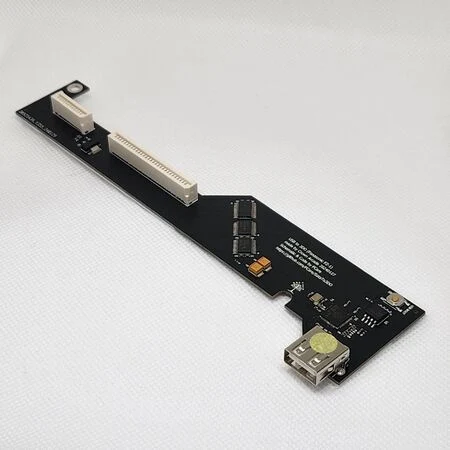
The 3DO ODE is an optical drive emulator created by Fixel that is capable of playing game backups from an SD card or USB drive.
Features include:
- USB storage (single partition)
- SDCard (SDXC) storage (single partition)
- FAT32 and exFAT support
- .bin/.cue, .iso, .img, .chd, and .nrg support
- Music CD support (.cue + .wav at 44100Hz @ 16bit stereo)
- Save game transfer to/from external storage
- Ability to dump system ROM to storage
There also exists an unofficial version for the Panasonic FZ-1 by Crown Arcade that uses the hardware design of FCare's SataTo3DO project and uses Fixel's menu software.
The USBto3DO project is an expansion of the Fcare's project by TZMWX, utilizing integrated circuits and compatible with models such as PANASONIC FZ-1, FZ-10, SANYO TRY IMP21J, and GOLDSTAR GDO101M.
USB Drive Setup
Method 1: One game on one USB drive
- Format the USB dirve as FAT32 or exFAT
- Copy the game image file in ISO format to the root of USB drive, rename it to "boot.iso"
Method 2: Multiple games on one USB drive (using FIXEL's menu software)
- Format the USB drive as exFAT.
- Copy boot.iso to the root of the USB drive. It must be the first file copied to it after formatting.
- Create any folder structure that you'd like and add the disc images (ISO, bin/cue, CHD, or IMG). It's recommended to make a folder for each game for the reasons described in the issues section.
Installation
Panasonic FZ-1 (Crown Arcade)
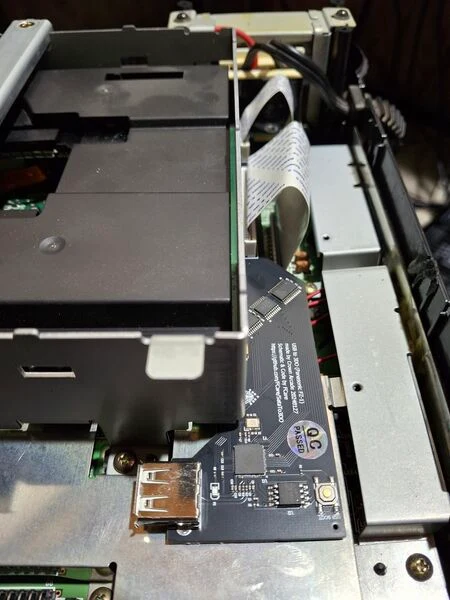
These are the instructions for the Crown Arcade hardware of the 3DO ODE for the Panasonic FZ-1.
- Unscrew the four screws on the bottom and remove the top of the shell.
- Unscrew the two screws on the metal disc drive shield. Use a screwdriver or spudger to release the four metal tabs and remove it.
- Unplug the two ribbon cables from the disc drive.
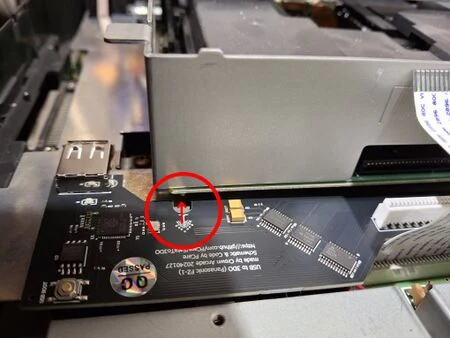
- Place the ODE in position. Note the small notch in the side of the board that seats into the post of the disc drive. Once you are sure of the placement, remove the adhesive and stick it in place.
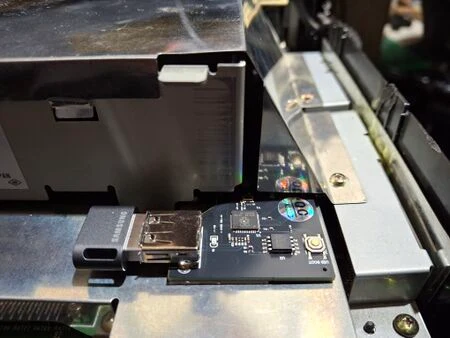
Insert the USB drive and start the console. Verify it reaches the main menu before reassembling the console.
Usage
Controls:
- A: Open folder or queue file
- B: Clear queue
- C: Fast start game
- L: Page left
- R: Page right
- P: Play queue
- X: Open system menu
Sorting Games
The filesystem does not support sorting of games on-console. Therefore, games are ordered in the order that they were placed on the storage drive, with renaming a file placing it last. However, there is a way to force the sort order.
- Add all the games and software that you want to the storage device.
- Run Fat Sorter, target the drive, ensure "Process subfolders" is checked, and click "Sort".
- Rename
boot.isoand every folder and file in the root and put "1" on the end of the file name. - Rename
boot1.isoback toboot.iso. This will ensure that it is the first file loaded in the root directory. - Rename all the other folders in the root directory to remove the "1" from the name.
Customizing the Main Menu
If you wish to customize the main menu background image or music, you have to use AlivE's boot customize tool.
- Download AlivE's boot customize tool and extract the contents.
- Download the official boot.iso (or supply your own from your console) and place it in the "boot_image" folder.
- Double-click to run
1. Decompile & conversion.bat. It will create new folders. - Modify any files you wish in the
Datafolder, but retain the original file names. It's recommended to keep images the same resolution to prevent issues.- If you want to silence the background music, copy the "bgm44.wav" file from the
No musicfolder into the data folder. - Supported image types: png, jpg, or bmp
- Supported music types: mp3, wav, or ogg
- If you want to silence the background music, copy the "bgm44.wav" file from the
- Double-click to run
2. Reverse conversion & compile & sign.batand it will generate a new boot.iso file. Copy this file to the root of your ODE's flash drive.
Issues
- If games are not put in individual folders, it will be very slow to load pages of games. Each consecutive page scrolled through will take longer to load than the last, and throw the audio into loops for minutes at a time.
- Due to a bug, if more than 14 games are in a folder, the first game on the second page will not appear. It's recommended to either sort the games into folders, which are not affected by the bug, or make a duplicate for the missing game, and sort it, which will sacrifice the duplicate file instead.
- Video displays in overscan region. If you set your CRT to underscan, it will display correctly.
- Sometimes opening a folder will not work, and jumps you up to the top of the page. Select a different folder, back out, and try again.
- The disc queuing system does not appear to work properly.