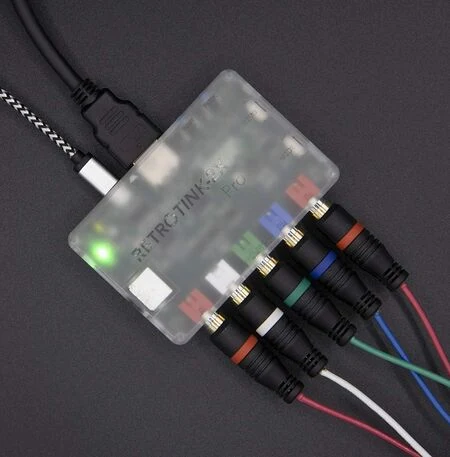
The RetroTINK 2X-Pro is a no-lag linedoubler in the RetroTINK line of upscalers and line-doublers made by Mike Chi. Its intended use is to connect old analog video game consoles that output a 240p video signal to TVs or monitors that don't have analog inputs or display 240p incorrectly. It's not designed to improve the visuals of the games you're playing.
Getting Started
- Connect the RT2X-Pro to your TV or monitor with an HDMI cable
- Insert the included Micro-USB power cable into the RT2X-Pro and connect it to a USB port that's capable of at least 500 mA (0.5A), for example a USB port on a TV or monitor. Your display should show a color bar screen for 30 seconds after plugging in power, after which the device goes into standby.
- Connect one console to the video inputs on the device. In order of lowest quality to highest quality: Composite (yellow RCA to the green RCA input jack), S-Video, YPbPr component (green, blue, red RCA). Only connect one type of connection. The 2X-Pro will automatically turn on when it receives a signal from the console.
- Lastly, press the input button to select the correct video input type. The indicator LED inside the 2X-Pro will light yellow for composite, white for S-Video, green for component.
- If you get no video output from the 2X-Pro, make sure that the MODE switch is set to Line2X and that the connectors on your console and cartridges are clean.
The original RetroTINK 2X-Pro manual in pdf format can be found here: RT2X-Pro-Manual.pdf
Suitable Consoles
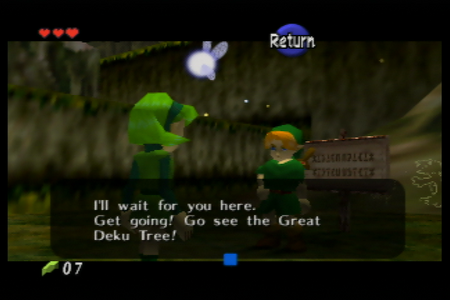
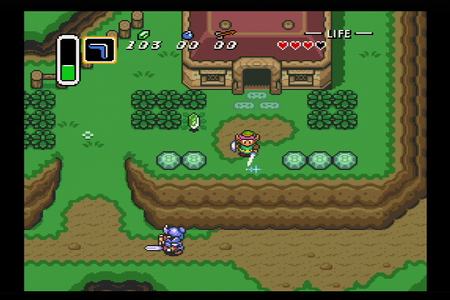
The 2X-Pro works best with consoles that predominantly output in 240p and don't switch resolutions. 480i input is accepted, but processed with Bob deinterlacing which results in vertical flickering. As such, consoles that mostly or completely output 480i work better with a scaler that supports motion adaptive deinterlacing like the RetroTINK 5X-Pro, 4K-CE or 4K-Pro. Some games in the N64, PS1, Saturn generation switch between 240p and 480i, which results in a short drop of the video. The duration of the drop depends on the display. This can cause gameplay problems in games that frequently switch resolutions, like Chrono Cross.
Examples of 240p consoles that work well with the 2X-Pro:
- NES
- SNES
- N64
- Saturn
- Megadrive / Genesis*
- Playstation 1*
Examples of 480i consoles that can be used with the 2X-Pro, but would look better with a scaler that supports motion adaptive deinterlacing:
- PS2
Examples of 480p consoles that are limited in resolution when connected to the 2X-Pro:
- Gamecube
- Wii
- Xbox
* A component (YPbPr) cable may be required to use these consoles with the 2X-Pro due to an incompatibility that affects some, but not all, consoles. See Incompatibilities for more information.
Hardware Overview
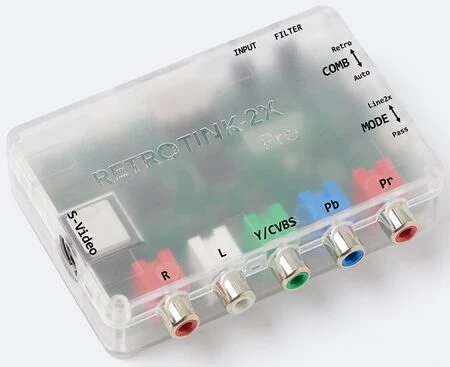
The RetroTINK 2X-Pro features a variety of inputs for analog video, an HDMI output, a Micro-USB input for power and firmware updates, as well as a couple buttons and switches.
The 2X-Pro comes in a translucent injection molded enclosure. The 2X-Pro can be distinguished from the 2X-Pro Multiformat (which has different features and uses different firmware) by its enclosure and the sticker on the bottom. The 2X-Pro Multiformat comes in a translucent black enclosure, while the 2X-Pro's enclosure is colorless.
Supported Inputs
- Composite
- S-Video
- Component (YPbPr)
Automatic Format Detection: Recognizes NTSC, PAL, PAL-60, PAL-M*, NTSC-443*, and SECAM* formats (*untested)
Only one input should be connected at a time to the 2X-Pro. If you want to connect multiple consoles you can use an av switcher.
Supported Input Resolutions
- 240p, 480i (60 Hz / NTSC, PAL-60)
- 288p, 576i (50 Hz / PAL, SECAM)
480p input is not supported.
Audio
The 2X-Pro accepts stereo audio through its two RCA input. There are no volume controls. Some consoles like the N64 will be louder than others.
Power
The 2X-Pro is powered through its Micro-USB port. The USB cable can be plugged into a USB port on your TV, or a separate USB power supply like a phone charger. The rated power draw of the 2X-Pro is <300mA at 5V.
A Micro-USB cable is included with the 2X-Pro, but any good quality Micro-USB cable can be used if the original cable is lost or too short.
LED Colors
Small LED
Located next to the Micro-USB power input.
- Green: The 2X-Pro is receiving power (always on)
Main LED
Located next to the S-Video input. Its main purpose is to indicate the current video input type.
- Green: Component (YPbPr) input
- White: S-Video input
- Yellow: Composite input
- Red solid: Firmware update mode
- Red slow flash 2x: Auto standby after 30 seconds of no input signal
- No light: Manual sleep mode
Note: The main LED will flash when powering up the device, flipping switches, entering manual sleep mode or waking up from sleep mode. The LED is bright and can't be dimmed.
Buttons and Switches
INPUT Button
Push the INPUT button to cycle between component (default), S-Video and composite inputs. The current active input type is indicated by the main LED. Changing the input type resets the filter to normal.
The input type setting is remembered between power cycles.
FILTER button
Push the FILTER button to cycle between filter effects: Normal (no filter), smoothed, scanline filter.
Additionally there are three extra filter modes that the FILTER button cycles through when the input type is set to component (green LED) and the COMB switch is set to Retro: Low-resolution YPbPr, low-resolution YPbPr smoothed, low-resolution YPbPr scanline filter.
The filter type setting is remembered between power cycles.
Press and hold the FILTER button for 3 seconds to put the 2X-Pro in manual sleep mode. Short press to turn it back on again.
MODE Switch
Adjusts the video output resolution. The default setting is Line2X, which linedoubles 240p and 480i (60 Hz) to 480p, and 288p and 576i (50 Hz) to 576p output. Setting the MODE Switch to Pass enables passthrough mode, which outputs the same resolution as the input resolution.
Passthrough mode allows for higher quality deinterlacing of 480i by the TV or video capture card, at the cost of increased latency. Many TVs do not accept a 240p or 288p signal though HDMI. As such passthrough mode may result in a black picture or error message from your TV when playing 240p systems, or the rare 240p game on newer consoles, like ICO on PS2.
The mode switch should be left in the Line2X position for maximum compatibility.
COMB Switch
Controls how the video decoder performs chroma / luma separation for composite video signals.
Retro: Ideal for consoles that use off-spec encoding and contain sharp edges, such as NES. Uses a notch based filter that minimizes ringing. Has lower horizontal resolution, but is free from vertical comb filter distortions.
Auto: Ideal for newer generation consoles like SNES and N64. Automatically analyzes the video signal and adjusts the comb/notch filtering and bandwidth settings. Additionally setting the COMB switch to Auto enables the auto gain function, which boosts picture brightness with all signal types.
Manual Sleep Mode
The 2X-Pro can be set to sleep by pressing and holding down the FILTER button for 3 seconds. This will turn off the main LED and lower the idle power consumption from roughly 0.9W to <0.1W. The 2X-Pro will not wake up automatically when you turn on a console while it's in manual sleep mode. To wake it up, push the FILTER button once.
Note: The 2X-Pro always outputs 5V through its HDMI output, even in sleep mode. Some HDMI devices like switches may falsely indicate that it's still outputting a signal.
High Resolution Chroma Mode (Deprecated)
High resolution chroma mode may be enabled by pressing the FILTER button then quickly pressing the MODE button and releasing both after a second. High resolution chroma mode does nothing and is not saved between power cycles.
Input Delay notes
The 2X line converts analog video to HDMI without lag (<100 μS from analog input to digital output), however your TV may add latency. Enable your TV's game mode to minimize the input delay you're experiencing.
Some TVs may exhibit increased input delay with 480p input sources or when scaling inputs to 4:3 aspect ratio.
Data Interface
FTDI USB Virtual Serial Port, 115200 bps 8-N-1 RTS/CTS Flow Control
Only active in update mode (red LED).
Video Output

The RetroTINK 2X-Pro outputs digital video through its HDMI port. It outputs full range RGB and audio. When it detects a DVI sink it output in DVI mode (video, but no audio).
Possible output resolutions with MODE switch set to Line2x: 720x480p60, 720x576p50
Possible output resolutions with MODE switch set to Pass: 720x240p60, 720x480p60, 720x288p50, 720x576p50
The 2X-Pro does not contain a frame buffer and as a result outputs at the exact same refresh rate as the input signal. This means that the video output for an NTSC SNES will be 720x480p 60.10 Hz. This may cause issues with some displays or capture cards, especially when the refresh rates deviates significantly from the standard 59.94 Hz for NTSC and 50.00 Hz for PAL.
Aspect Ratio
The RetroTINK 2X-Pro always outputs at 720 pixels horizontal resolution. It is up to the display or capture solution to scale the video to the correct aspect ratio, usually 4:3. Most TVs and monitors have an option to set the aspect ratio to Fill, 16:9 or 4:3. If the display does not have an aspect ratio setting, the image will most likely be stretched to 16:9 or scaled 1:1 which results in a slightly too wide image.
Color Bar Screen
The 2X-Pro outputs a color bar screen for 30 seconds after receiving power or waking up from manual sleep mode, if no active console input is detected. While the color bars are on screen, it will also output audio, even when it doesn't detect any video signal. After 30 seconds the 2X-Pro will switch to a standby mode and wait for a console to be turned on.
Deinterlacing vs 480i Passthrough
The RT2X only supports Bob deinterlacing for 480i sources which moves the picture up and down by one line every frame. This creates a flickering image, that some users may find distracting. On IPS monitors it can also lead to temporary image retention of static elements on the screen.
As an alternative to lag-free Bob deinterlacing on the RT2X, setting the MODE switch to Pass will send the 480i signal to your TV. Your TV will then apply its standard deinterlacing to the image, which may result in a smoother, more stable picture, at the cost of some latency. Passthrough may be useful for 480i games if latency is less important, for example in turn based RPG or strategy games.
Video Filters
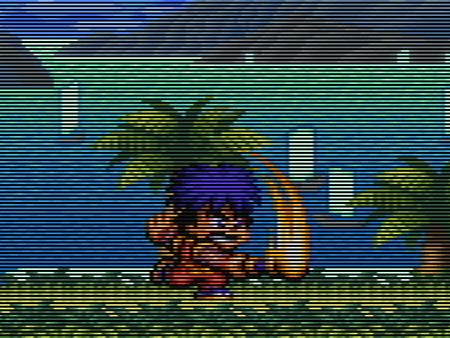
| Demonstration of the different video filters on the 2X-Pro | ||
|---|---|---|
  |
  |
  |
| All images cropped and scaled. Click on the images for a full view. | ||
Normal
The image is outputted with relatively sharp scaling that retains the original pixels.
Smoothed
The smoothing filter on the 2X-Pro can smooth over pixelated edges. This helps to reduce stair-stepping in early 3D titles on consoles like the N64. But it can also result in a smudged look for 2D elements and may highlight flickering pixels in 3D models with a low pixel count.
Scanlines
The scanline filter on the 2X-Pro adds a black line between every line of the input image. This makes the output of the 2X-Pro significantly darker. There is no compensation for this loss of brightness. As a result, the usefulness of this filter is limited.
With 480i input the black lines move up and down by 1 pixel with every output frame, to simulate the flicker you get on a CRT.
Comb Filter
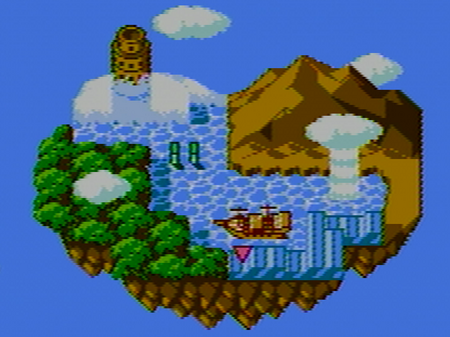
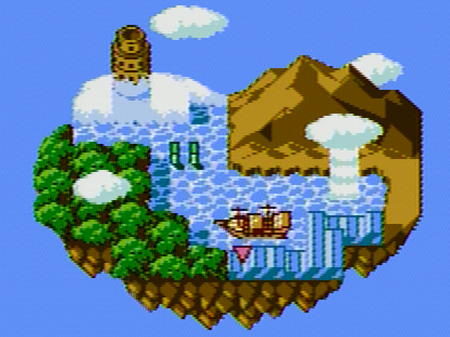
A comb filter separates luma (brightness information) and chroma (color information) from a composite video signal. It is not used for S-Video or component inputs. Setting the comb filter switch in the Auto position yields the best results with most consoles, but early consoles like the NES yield better results when the switch is set to Retro, which engages a notch comb filter.
Setting the comb filter to auto also boosts the brightness of the image, independent of the video signal type.
| Demonstration of the different comb filter settings on the 2X-Pro with an AV Famicom console | |
|---|---|
 |
 |
| All images cropped and scaled. Click on the images for a full view. | |
Low-res YPbPr Mode
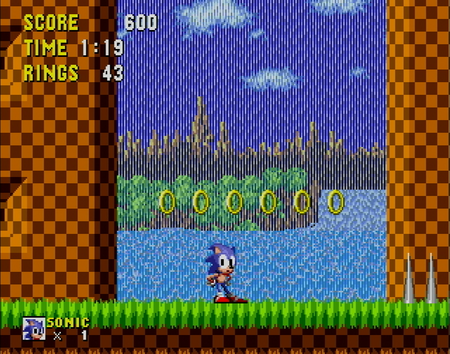
The Low-res YPbPr mode is available exclusively for component (YPbPr) video input. To enable it, set the COMB switch to Retro and cycle through the available filter modes with the Filter button. The RT2X-Pro will switch between normal and Low-res YPbPr mode. Each mode offers normal, smoothed and scanline filters.
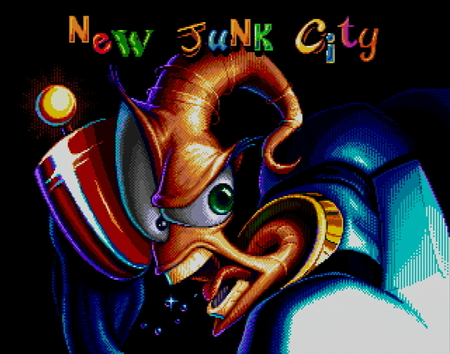
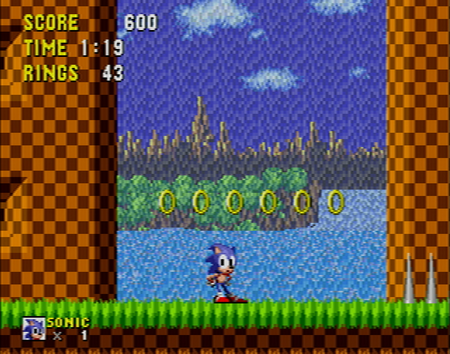
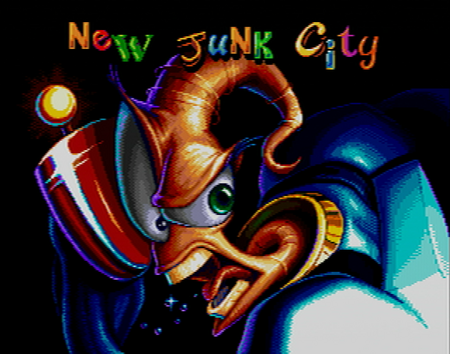
Low-res YPbPr applies a horizontal blur that smooths out vertical lines from dither patterns into a solid color. It blurs the whole image, which can make text harder to read, and it adds some ringing artifacts that can be visible on high contrast edges. Effective uses of Low-res YPbPr mode are for example Genesis connected with HD Retrovision component cables or Wii Virtual Console.
| Demonstration of the low-res YPbPr video filters on the 2X-Pro with Wii VC | |
|---|---|
  |
  |
| All images cropped and scaled. Click on the images for a full view. | |
Downsides of Line-Doublers vs Scalers
The RetroTINK 2X line consists of line-doublers, unlike the RetroTINK 5X-Pro or the 4K models which are full fledged scalers. The 2X-Pro outputs 480p / 576p as its highest resolution. It is then up to the display to scale the image to the native panel resolution, usually 1080p or 4K. The final picture quality heavily depends on the scaling engine of the display. Some displays deliver a nice sharp picture, while others will result in an overly blurry image. Some modern displays also introduce glitches like screen tearing with low resolution inputs, since some TV manufacturers no longer see 480p and 720p as a priority. A full fledged video scaler scales the image to a higher resolution, and usually offers many options for aspect ratio, sharpness and other image aspects like color intensity.
The 2X line doesn't contain a frame buffer. While this results in the lowest possible video delay, it also introduces some problems. The 2X-Pro (and other line-doublers) drops the video output when a console switches resolutions. Games like Chrono Cross on the PS1 switch between 240p during gameplay and 480i for the pause menu. When playing Chrono Cross, every time you open the menu the display will turn black. Some displays recover quickly, while others can take several seconds to show the game again. This also happens when resetting the console, which may be an issue for speedrunners who need to reset the console to start a new run. The 2X can't smooth over sync irregularities from consoles like the NES or SNES that don't output a fully stable sync signal. The result is that some TVs may display PS1 correctly through the 2X-Pro, but struggle with SNES.
This also means that the 2X line is not suitable for VHS playback.
Incompatibilities
- PS1. A few consoles don't display colors correctly on the 2X-Pro when using composite or S-Video. There is no known indicator which consoles are affected by this bug. Use a PS2 to play your PS1 games through its backwards compatibility, or get HD Retrovision's Genesis component cable and the PS1 adapter. The PS2 HD Retrovision cable can not be used on a PS1.
- Megadrive / Genesis. Some console's composite and S-Video output is incompatible with the 2X-Pro. This seems to mostly affect consoles that use a CXA1645 video encoder. Use HD Retrovision component cables if your console does not display correctly through the 2X-Pro.
- Samsung TVs may show screen tearing with 480p input in game mode.
- The RetroTINK 2X line is not suitable for VHS playback or recording.
- Elgato capture devices may have issues with the 2X-Pro's video output.
Firmware Update
Note: The 2X-Pro ships with the latest firmware version. A firmware update is not necessary.
To enter firmware update mode, hold the INPUT button while plugging in the USB cable to your computer. The LED will stay red when done correctly. After the flashing process is done, the LED will switch to green. For full firmware update instructions (Windows only) please see the official RetroTINK firmware repository: RetroTINK-2X Pro Firmware Repository
There are several third party solutions to update the firmware. Most notably the browser based RetroTINK Firmware Flasher.
Options for advanced users are:
- tinkup by rmull
- retrotink-flashy by adasauce
Troubleshooting
- No video output
Make sure that the 2X-Pro's USB power cable is plugged into a suitable power supply.
If you're using a cartridge based console, especially the N64, make sure that your cartridges are clean. The cartridge connector inside the console must also be clean and in the case of N64, a Jumper Pak or Expansion Pak must be plugged into the console.
- There are black borders around the image
Old CRT TVs usually couldn't display the outer edges of the screen. That's why many games left this overscan area black. These borders can be removed or minimized with the overscan settings of your TV.
- The image is black and white
Switch to the correct video input by pressing the input button.
- It's hard to see anything in dark scenes
Make sure that your display is set to Full Range (0-255) RGB input.
- There is a double image
The 2X-Pro does not support 480p (EDTV) input. Please set your console to 480i / 576i.
- The picture is noisy and/or interference is seen
Wavey noise is usually caused by low quality cables, noisy power or an issue with the console like failing capacitors.
- No audio
If you're using a display with HDMI 2.1 inputs, try looking for an option to set the HDMI input to HDMI 2.0/1.4 or disable HDMI 2.1.
- Audio is delayed after a while
This can happen on some TVs that do not like non-standard refresh rates from some retro consoles. Connect the audio cables directly to your speakers instead of the 2X-Pro to avoid this issue.
- There is screen tearing visible in motion
Some Samsung TVs show screen tearing in game mode with 480p input. Disable game mode if you're experiencing issues like this. Some games, especially on consoles like the PS2, may also have screen tearing built into the game.
- The screen turns black sometimes, for example when opening menus or resetting the console
This happens during resolution changes. A scaler like the RetroTINK 5X or 4K models is required to keep the output going during resolution changes.