The FileZilla client allows you to transfer files that can be transferred to and from other devices using the File Transfer Protocol.
Please note, FileZilla downloads for Windows can be bundled with adware, please read the installation wizard carefully if you choose to use FileZilla over WinSCP or any other FTP client. It is highly recommended to download FileZilla from the alternate downloads page instead of the normal bundled installer.
Usage
On a custom dashboard, weather it's booted with a hardmod or softmod, an FTP server will always be running in the background.
- Make sure you have either an Ethernet or Wi-Fi connection between your console and PC.
- Take note of your console's IP address. It will either be in the system's settings, the FTP server application, or custom dashboard, depending on what you're using.
- If there is no IP; change the IP address to a static one. You may need to also set the gateway to your PC's IP address, but this isn't usually necessary.
- Open a FileZilla session and enter your console's IP into the host field in the top left, and leave the username/password blank unless it's set up with one. Press enter to connect.
- If you have an Xbox or Xbox 360, may need to navigate to Network and Sharing Center → Change Adapter Settings → Right click the ethernet adapter → Properties → Configure... → Speed & Duplex → Select 100Mbps Full Duplex from dropdown and hit OK.
- If you have an Xbox or Xbox 360, FTP servers will have
xboxas the username and password.
- In the right-hand side, you should see a directory listing of the different partitions on the console. You can view some other articles to know what each folder is for, depending on the console.
- Xbox:Files and Directories
- Xbox 360:Files and Directories
- PS3:Files and Directories
- Alternatively, you can also view the PS3 Manual Backup guide.
- PS4:Files and Directories
- Vita:Partitions and Mountpoints
- You can browse your PC on the left-hand side and upload or download files by right clicking them and choosing the relevant option on either session. Choosing "Add to Queue" will save the transfer into a list, and pressing Ctrl+P will start processing the list; this is handy if you are not yet ready to transfer large amounts of files.
Recommended settings for Xbox or Xbox 360
Make sure to use these settings in FileZilla:
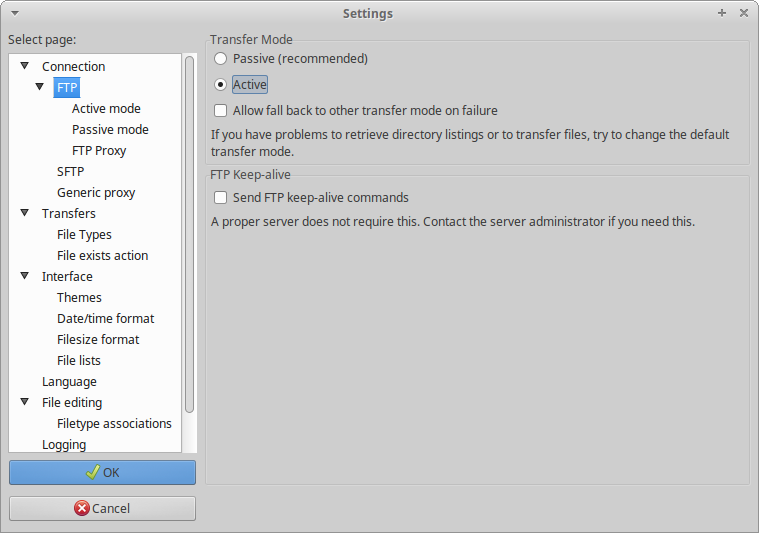
- Active mode and disable fallback
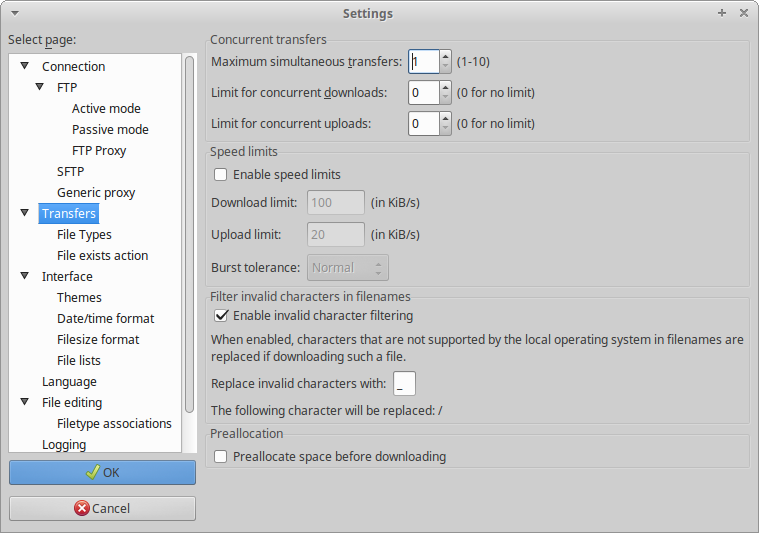
- One transfer at a time to reduce fragmentation. Your goal isn't to get files onto your Xbox as fast as possible, it's to get them on there in one contiguous piece without being fragmented on the file system.
- Binary mode, and disable ASCII options
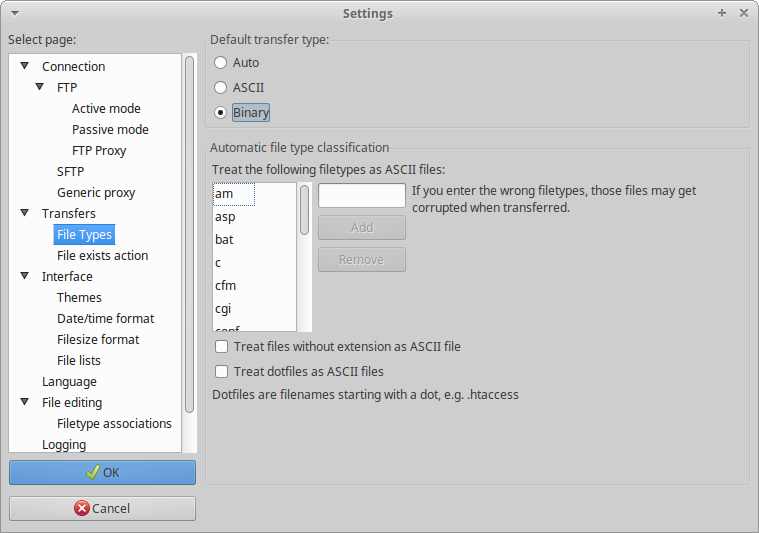
- This is optional if using an Xbox 360.
Troubleshooting
- If you cannot see a file that you just placed on your console, try pressing F5 to refresh Filezilla's file list.