This guide will walk you through flashing a TS-H943 drive to play burned media. This guide assumes that you disassembled your Xbox 360 and have removed your DVD drive.
Prerequisites
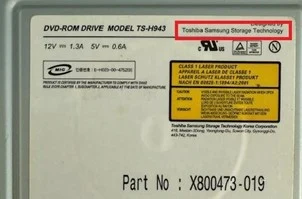
Before beginning, check the sticker on the DVD drive to verify that it is a Toshiba Samsung drive, as shown in the picture to the right.
Also, for flashing, you need following devices:
- Flashing device: X360USB Pro/V2, SATA card, or Maximus Lizard
- DVD power device: CK3 or Xtractor; it's not recommended to power the drive with the Xbox 360!
- Molex power: A power brick or a PC power supply Molex cable
- JungleFlasher or the Lizard toolbox
The easiest method is to get a X360USB Pro V2 on AliExpress. It combines the reading/flashing and the power for the DVD drive.
X360USB / SATA Card
- Hook up your flashing device and power device to the drive.
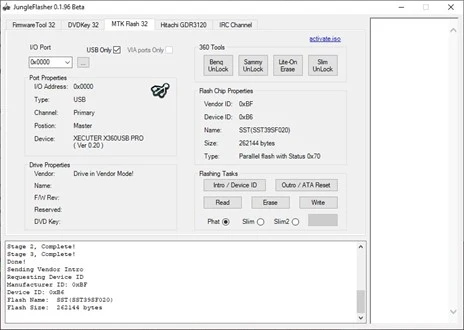
- Open Jungleflasher and navigate to the "MTK Flash 32" tab and select the button "Sammy UnLock". Once the vendor mode is started, Jungleflasher should look like this:
- Select the “Read” button in the “Flashing Task” section. After the read is done, a window opens for saving the OFW called "SAM-OFW.bin". Save the backup somewhere safe. After saving the backup, a prompt pops up asking you to auto-load Samsung LT-Plus. Select "Yes".
- Jungleflasher will switch back to the "Firmware Tool 32" tab, as shown below:
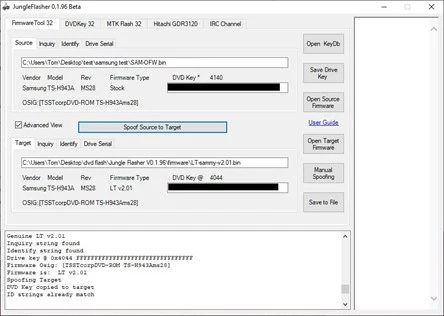
- For safety reasons, select "Spoof Source to Target" 2-3 times.
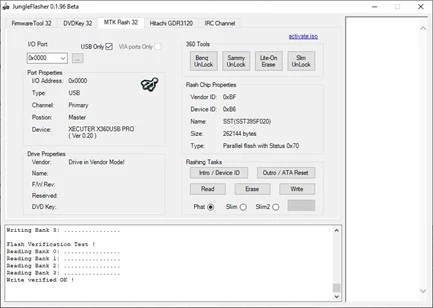
- Click the "MTK Flash 32" tab and under the "Flashing Task" section, select the Write button. Once it's finished writing the LT-Plus firmware to the drive, Jungleflasher should look like this:
- Select the "Outro / ATA Reset" button and after its completed, Jungleflasher looks like this:
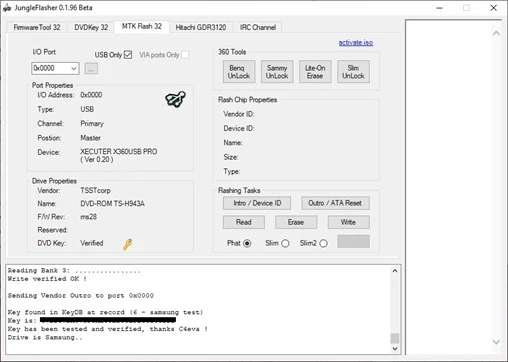
- Ensure that the "DVD Key" section says "Verified".
- Check that your drive ejects and closes. If it does successfully, power off the drive and unplug all the cables. Test the drive with the console and ensure that it reads a normal game and a backup.