- English
- español
Bad Update es un exploit no persistente del hypervisor basado en software por Grimdoomer para todos los modelos de Xbox 360, que funciona en la (por ahora la mas reciente) versión 17559. Combinado con InvoxiPlayGames' FreeMyXe, Bad Update puede ser usado para ejecutar código sin firmar en una consola sin modificar.
Los siguientes juegos son soportados:
- Rock Band Blitz (Demostraciones o juego completo):- Descargar Demo
- Tony Hawk's American Wasteland (NTSC/PAL/RF)
con Rock Band Blitz siendo preferido por su capacidad de see descargado y copiado en un almacenamiento externo.
Requisitos
- Una Xbox 360 (esto no funciona en consolas Xbox One o Xbox Series)
- Un almacenamiento USB con al menos 512MB de capacidad, formateado en FAT32.
- Un juego compatible de la lista de arriba.
- La ultima versión de la Bad Update para Xbox 360 - descarga el archivo ZIP para USB.
- La última versión de FreeMyXe.
Preparing the USB drive
Installing Exploit Files to USB Drive
- Format your USB drive as FAT32 (it might be using another file system such as exFAT by default). This can easily be done with the Xbox 360 dashboard's storage settings.
- If you have a Windows machine and a USB drive that's bigger than 32 GB, you'll have to use the Xbox 360 dashboard to format the USB drive unless you download extra software (such as Rufus or GUIformat).
- Extract the contents of the zip corresponding to the entry point you are using (either Bad Update or ABadAvatar) to the root of the USB drive.
- Extract the contents of the
XeUnshackle-Max-v1.0.0folder to the root of the USB drive, except for JRPC2.xex. - Extract Launchini.7z and place the
launch.inifile on the root of the USB drive. - Extract Aurora to a folder called
Auroraon the root of the USB drive. - Extract the Content folder from the XeXMenu 1.1 zip to the root of the USB drive.
- Extract the DashLaunch folder inside another folder for homebrew apps on the USB drive, such as
Applications - Optionally, you can create folders named
GamesandEmulatorsrespectively. You can use the Games folder for installing Xbox 360 game backups (explained more at the end of the guide), or the Emulators folder for homebrew emulators.
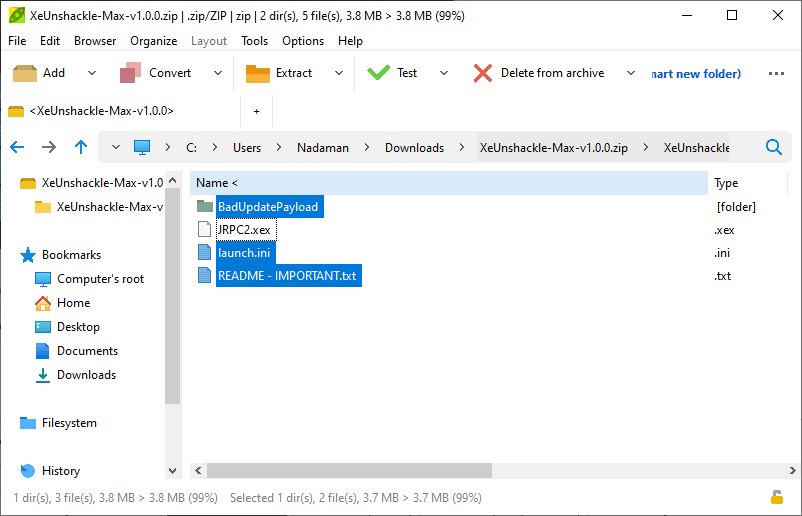
The contents of the USB drive will look like the following if you're using ABadAvatar 1.3:
💾 Usb0:
 ┣ 📂 $SystemUpdate
 ┃  ┗ All system update files will be in this folder; you don't need to interact with them.
 ┣ 📂 Applications
 ┃ ┗ 📂 DashLaunch
 ┃    ┗ 📜 default.xex
 ┣ 📂 Aurora
 ┃  ┣ 📂 Data
 ┃  ┣ 📂 Media
 ┃  ┣ 📂 Plguins
 ┃  ┣ 📂 Skins
 ┃  ┣ 📂 User
 ┃  ┣ 📜 Aurora.xex
 ┃  ┣ 📜 live.json
 ┃  ┗ 📜 nxeart
 ┣ 📂 BadUpdatePayload
 ┃  ┣ 📜 BadStorage.xex.dll
 ┃  ┣ 📜 BadUpdateExploit-4thStage.bin
 ┃  ┣ 📜 BadUpdateExploit-Avatar-2ndStage.bin
 ┃  ┣ 📜 BadUpdateExploit-Avatar-3rdStage.bin
 ┃  ┣ 📜 BadUpdateExploit-Avatar-Data.bin
 ┃  ┣ 📜 default.xex
 ┃     ┗ This file should be the one from the XeUnshackle download, NOT the one that comes with Bad Update. The file the comes with Bad Update is just a Nyan Cat video.
 ┃  ┣ 📜 GamerProfile.xex
 ┃  ┣ 📜 update_data.bin
 ┃  ┗ 📜 xke_update.bin
 ┣ 📂 Content
 ┃  ┣ 📂 0000000000000000
 ┃  ┃  ┗ 📂 C0DE9999
 ┃  ┃     ┗ 📂 00080000
 ┃  ┃        ┗ 📜 C0DE99990F586558
 ┃  ┗ 📂 E0002FF78DFBDE7B
 ┃     ┗ 📂 FFFE07D1
 ┃        ┗ 📂 00010000
 ┃           ┗ 📜 E0002FF78DFBDE7B
 ┣ 📂 Games
 ┣ 📂 Emulators
 ┣ 📜 launch.ini
 ┗  📜 name.txt
Creating & Using a System Drive
 | If your console has an internal memory unit, or has a hard drive, you can skip this step. This section is only for users that don't have any form of internal storage for the Xbox 360, and are forced to rely on only USB storage. If you're in this situation and want to use an HDD/SSD over USB, you may still want a second flash drive just for the System Drive, so there isn't wasted space on the HDD/SSD. |
Make System Drive to add the old Xbox360 file system.
If the drive shows as "Unformatted" on the console, you can click Customize in the drive's settings to both format it as FAT32, and add the extra Xbox360 folder. In this screen, you can configure the size of the Xbox360 folder to your liking, though it will still be limited to 32 GB maximum.
Since the Xbox 360's stock dashboard will only read user data from the System Drive file system rather than the FAT32 file system, some of the files for Bad Update will need to be moved here as well.
- Install FATXplorer on your PC.
- Select the
Devicestab in FATXplorer.- Your USB drive may not show up, so if this is the case, click
Load USB Dirand select theXbox360folder on the USB drive.
- Your USB drive may not show up, so if this is the case, click
- Select the drive, and mount the Content partition.
- If you have a pop-up asking for a license, you can just click
Start Trial. Of course, if you want to support the FATXplorer project, you can also buy a license key on the website.
- If you have a pop-up asking for a license, you can just click
- Cut & paste the entire Content folder from the FAT32 USB drive to this Content folder. The contents of the USB drive will now look like this:
💾 Usb0 (FAT32 portion):
 ┣ 📂 $SystemUpdate
 ┃  ┗ All system update files will be in this folder; you don't need to interact with them.
 ┣ 📂 Applications
 ┃ ┗ 📂 DashLaunch
 ┃    ┗ 📜 default.xex
 ┣ 📂 Aurora
 ┃  ┣ 📂 Data
 ┃  ┣ 📂 Media
 ┃  ┣ 📂 Plguins
 ┃  ┣ 📂 Skins
 ┃  ┣ 📂 User
 ┃  ┣ 📜 Aurora.xex
 ┃  ┣ 📜 live.json
 ┃  ┗ 📜 nxeart
 ┣ 📂 BadUpdatePayload
 ┃  ┣ 📜 BadStorage.xex.dll
 ┃  ┣ 📜 BadUpdateExploit-4thStage.bin
 ┃  ┣ 📜 BadUpdateExploit-Avatar-2ndStage.bin
 ┃  ┣ 📜 BadUpdateExploit-Avatar-3rdStage.bin
 ┃  ┣ 📜 BadUpdateExploit-Avatar-Data.bin
 ┃  ┣ 📜 default.xex
 ┃     ┗ This file should be the one from the XeUnshackle download, NOT the one that comes with Bad Update. The file the comes with Bad Update is just a Nyan Cat video.
 ┃  ┣ 📜 GamerProfile.xex
 ┃  ┣ 📜 update_data.bin
 ┃  ┗ 📜 xke_update.bin
 ┣ 📂 Games
 ┣ 📂 Emulators
 ┣ 📜 JRPC2.xex
 ┗ 📜 launch.ini
💾 USBMU0 (System Drive):
 ┣ 📂 Content
 ┃  ┣ 📂 0000000000000000
 ┃  ┃  ┗ 📂 C0DE9999
 ┃  ┃     ┗ 📂 00080000
 ┃  ┃        ┗ 📜 C0DE99990F586558
 ┃  ┗ 📂 E0002FF78DFBDE7B
 ┃     ┗ 📂 FFFE07D1
 ┃        ┗ 📂 00010000
 ┃           ┗ 📜 E0002FF78DFBDE7B
 ┗ 📜 name.txt (optional)
Installing the 2.0.17559.0 System Update & Avatar Data
| You will also need a System Drive set up for the console, if it doesn't have any form of internal storage (either HDD or internal memory unit). |
- Plug the USB drive with the system update into your Xbox.
- Press yes on the pop-up to install the update.
- The Xbox 360 will install missing data and then reboot. Verify the installation by going to the original dashboard and checking that your avatar has skin and does not look like a generic white character anymore.
- If you're doing an actual system update (such as going from 17349 to 17559), you may need to let the console run the update again if you don't have a System Drive, memory unit, or hard drive connected, as installing the Avatar data is a separate process.
Disabling Profile Auto Sign-In (ABadAvatar)
Since ABadAvatar relies on the console scanning the avatars of every profile on the console, it's preferred to disable the profile that currently has auto sign-in enabled, as this will allow the exploit to run without any user interaction when the console boots.
- Press the Xbox Guide button.
- Navigate to the Settings tab, and click the Profile button. These are the settings for the profile you're currently signed in to.
- Click
Sign-in Preferences, and turn the auto sign-in feature off. You can now proceed with running the exploit.
Ejecutando el Exploit
- Desconecta tu consola de internet (desconecta el cable LAN y elimina todos los ajustes de Wi-Fi), e inicia sesión en un perfil local. Tony Hawk: American Wasteland viene con un perfil local ("Jugador1") que debe ser usado, Rock Band Blitz no necesita un perfil en específico a si que puedes usar uno propio.
- Descarga la ultima versión de Bad Update, y extrae el contenido de la carpeta para tu juego (p.e. los archivos de la carpeta "Rock Band Blitz", si vas a usar Rock Band Blitz) al directorio raíz de tu almacenamiento USB.
- Descarga la ultima versión de FreeMyXe, renombra el XEX dentro del ZIP a "default.xex", y ponlo en la carpeta BadUpdatePayload en tu almacenamiento USB.
- Conecta el almacenamiento USB a tu consola, ejecuta el juego, y sigue los pasos específicos para el juego seleccionado:-
- Tony Hawk: American Wasteland: Una vez en el menú principal, selecciona "High Score/Free Skate", si te pregunta si quieres cargar el progreso de la ultima partida selecciona "No". Continua por los menús hasta llegar a la pantalla de selección de nivel. Una vez ahí baja hasta el final de la lista, selecciona la opción "Created Parks", y selecciona "Load Park". Si eres preguntado si quieres reemplazar el parque sin guardar, selecciona que sí. El juego buscará archivos de juego en los dispositivos de almacenamiento, deberías ver "Hack Xbox" en la lista de parques personalizados. Selecciona el parque "Hack Xbox", después de que cargue el archivo selecciona la opción "Play Park" y el proceso del exploit comenzará. Pon un temporizador de 20 minutos - si después de 20 minutos el exploit no se ha ejecutado correctamente, reinicia la consola e inténtalo de nuevo.
- Rock Band Blitz: Pulsa
 para empezar y elige el dispositivo USB si aparece la ventana de selección de dispositivo de almacenamiento. Espera a que aparezca el texto "Running exploit" - si la musica y/o el fondo se paran/congelan, reinicia la consola e inténtalo de nuevo.
- FreeMyXe te mostrará la clave de tu CPU - deberías de apuntarla y/o hacerla una foto - pulsa en "OK" para continuar, y luego en "Yay!" cuando el parche ha sido confirmado.
![FreeMyXe beta 1, con el texto "Hypervisor and kernel have been patched! Your CPU key is: [REDACTED] github.com/InvoxiPlayGames/FreeMyXe", con la opción "Yay!" seleccionada.](/img/wiki/0cb42d1dea0a961fb2306ef0bd6527c52f620be43795f4a1a45b97cbd156ef2a.webp)
¡Felicidades! Ahora puedes ejecutar código sin firmar. Puedes usar XeXMenu para ejecutar de forma sencilla otros XEXs, pero probablemente necesites usar xextool para deshacerte de todas las restricciones (este está incluido en el archivo “Tools.zip” junto con la Bad Update) - puedes hacer esto con el comando ‘XexTool.exe -m r -r a <archivo xex>’
Prior to FreeMyXe beta5 & XeUnshackle, XEX files had to be patched to remove all media restrictions; this is no longer required with the release of beta5 & XeUnshackle to improve on support for homebrew XEXs (including devkit-signed XEX files, not "dev builds" of games).
If you're using FreeMyXe beta4 or newer, you can also connect the console back to your LAN if you want to use things like FTP, System Link, or XLink Kai, as FreeMyXe has Xbox Live blocking built in. This also applies to XeUnshackle, as it just uses DashLaunch's liveblock. Just make sure to forget your Wi-Fi network or unplug your Ethernet cable before powering off the console. It is ideal to disable Auto Power-Off in your console settings to make sure you're in control of when that happens, and turning that off will be helpful for FTP anyway.
LED Patterns & Meanings
Bad Update will change the console's player LEDs in order to show the status of the exploit, which can be useful to see its current progress. An explanation of what the LED patterns mean is explained on the official Wiki.
Error Codes
If a major issue during the Bad Update exploit process occurs, it can utilize the Universal Error Message (UEM) feature of the Xbox 360's system software. Most of the time, these are just caused by corrupt files, but you can view what each error code means on the official wiki page, or the Error Codes page.