This article will explain how to program .fs timings on the Gowin-based X360ACE glitch chips. A supported programmer is required (xFlasher will work, as will any FT2232 device).
- X360ACE V3+
- X360ACE V4
- X360ACE V5
Supported Timings
- RGH1.2 V2 (Trinity/Corona only)
- AceV5 RGH Phat (Falcon/Jasper/Tonasket only)
Programming
1) Download Gowin EDA from Gowin. (account required)
2) Install Gowin EDA after it downloads (You cannot use the education version, as it will not have the required device). You only need the Gowin Programmer, but you can install the main Gowin package if you want.
3) When the installer finishes, ensure that you check the box to install the drivers for your operating system. (not needed for xFlasher users, the xFlasher drivers are sufficient)
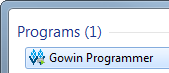
4) Launch Gowin Programmer (Apply for the License following the prompts, you will get an email within 24 hours with a download and instructions).
5) Change the “Series” to “GW1N”, and ensure the “Device” is set to “GW1N-1”.
6) Double click under “Operation” to open the “Device configuration”.
7) Change the “Access Mode” to “embFlash Erase, Program”.
8) Under “File name”, set the .fs you wish to program.
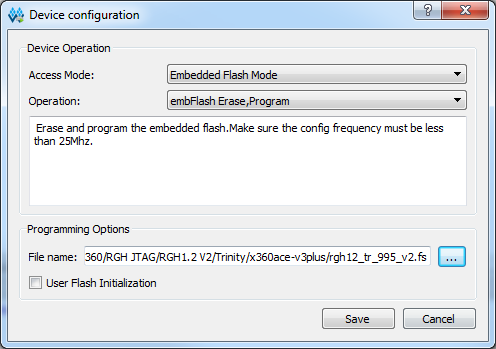
9) The entry should now look as follows.

10) Right click anywhere on the entry, and click "Cable Setting", "Cable".
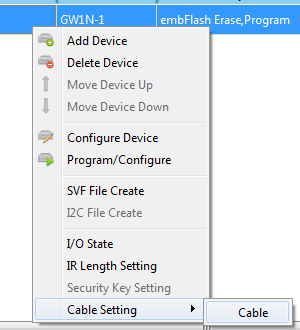
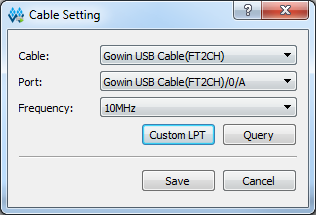
11) Set the "Frequency" to "10MHz" and click "Save", if this does not work, you can try other values.
12) Connect your programming cable to the chip according to the below picture, as the pinout does not match other glitch chips.
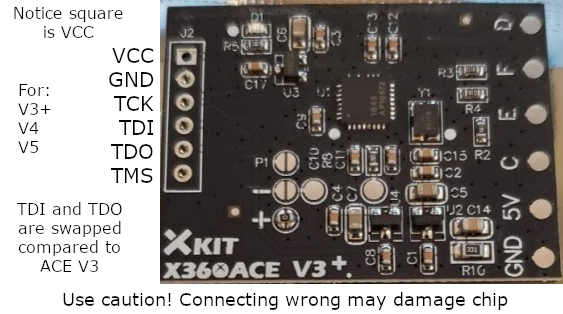
13) Click the “Program/Configure” button.

Troubleshooting
"Cable open failed"
Wait at least 5 seconds after connecting your programmer before clicking “Program/Configure”, and ensure drivers are installed.
"ID code mismatch"
Cable not connected correctly, or chip is damaged. Not using the right device, make sure you have the full version.
Other Errors
Disconnect everything from power and your PC, then connect back and try again. Try other frequencies in "Cable Setting".