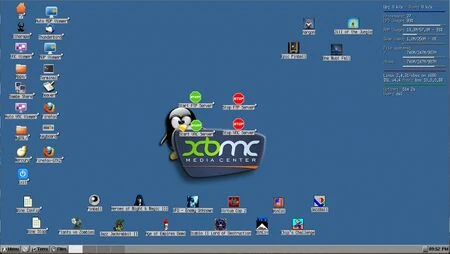
The original Xbox can loosely be described as a 32bit x86 PC, with a 733MHz single-core Pentium processor and 64MB of RAM. Although Window itself cannot run directly on this system, thanks to the efforts of many talented individuals it became possible to boot a number of Linux distributions very shortly after its release. When using Wine through Linux, you can in turn launch many Windows applications via a native translation layer.
Requirements
- A modded original Xbox, capable of running homebrewed software and accessible over your local area network.
- A video cable:
- Composite is barely viable, as it will limit you to 640x480. Be prepared to blindly tab between off-screen button elements this way.
- Linux builds can output 720p (1280x720) through HDMI adapters, but may have audio issues.
- Component cables will get you 720p and audio, although TVs may be more likely to crop your image than they would with HDMI.
- At least one USB to Xbox control port adapter, same as commonly used with the ENDGAME exploit.
- An Xbox gamepad can be used for primitive mouse emulation.
- Two adapters are strongly recommended for a proper keyboard and mouse combination.
- X-DSL doesn't seem to like USB hubs.
- Some Windows-based software to run.
- 16bit is widely supported, and 32bit usually works well so long as it doesn't require Direct3D.
- CD copy-protected software will have issues.
- Some games won't be able to play music due to the lack of a MIDI synth.
- DOS-based software won't run through Wine. If you wish to run it on an Xbox then you'll need to emulate it through DOSBox instead.
Setup
- Set up X-DSL. For simplicity, xphaz's "0.7" distribution is used in this guide: GD / MF
- This package provides you with a pre-configured loopback installation, offering an EXT3 file system of roughly 1GB in size within an
xdslfsfile. The user account is calleddsl. - After extracting the archive on your PC, copy the content from the
Efolder onto the root of your console'sEpartition and copy the wholeLinuxfolder into your console's applications directory. - Optional: Use your text editor of choice to open
E:\linuxboot.cfgand you'll see four sections covering possible video modes. Consider removing the three you don't intend to use, leaving only the 640x480 section (if you're using a composite video lead) or the 720p section (if you're using a component video lead or an HDMI output).
- This package provides you with a pre-configured loopback installation, offering an EXT3 file system of roughly 1GB in size within an
- Launch "Linux" from your dashboard's applications menu. You'll be taken to a boot selection screen: simply press A to start the installation on your FATX
Evolume.- Once your X-DSL environment has booted, if your desktop isn't fitting your screen correctly then you should first turn to your TV remote in order to correct the issue. If your TV does not allow you to correct its picture zoom, however, then on your Xbox you can right click your desktop and select Setup for some overscan compensation tools.
- You start with four separate desktops, and can jump between them merely by using your mousewheel on your wallpaper. Keep this in mind if all of your program windows suddenly disappear.
- On the Linux desktop, double-click the Start FTP Server icon. Note the IP address displayed on the right side of your desktop. You can connect in much the same manner as you would to your regular Xbox dashboard, although your default username and password will both be
dsl. You'll be automatically directed to the root of your user account folder at/home/dsl.
- Use your PC to download a suitable version of Wine for X-DSL. Although some later builds should still be available for direct download through the MyDSL Browser app within X-DSL itself, wine-0.9.15.unc seems to work best on the Xbox. You may need to specifically right click the file and select "save link as" to get the download to start. Once you have the file on your PC, use your FTP connection to copy it to your Xbox's
/home/dslfolder.
- Open a Terminal window using the icon on your Linux desktop.
- Enter
mydsl-load wine-0.9.15.uncto install Wine onto your system. You can remove the UNC file once this is done.
- Enter
wineprefixcreateto create your Wine prefix directory at/home/dsl/.wine. Among other things, this hidden folder includes a virtual directory structure for a Windows machine.
- Enter
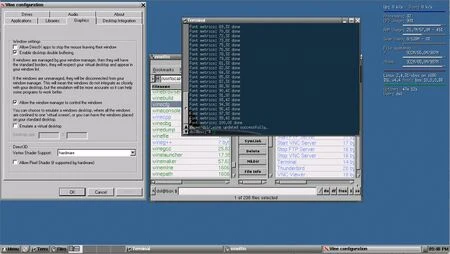
winecfginto your Terminal window to open Wine's configuration panel.- On the Applications tab, note the Windows Version selector. Most programs don't care about this, but if an application complains that you require a specific version of Windows then you can try matching that here.
- On the Graphics tab, note the Emulate a Virtual Desktop checkbox. Many full-screen applications require this enabled in order to function. Non-full screen apps tend to work better without it. If you do enable it then it's strongly suggested to go at least 800x600, since WineCfg itself will run inside this desktop when you next re-open it as well.
- Select the Audio tab, and you'll be notified that a driver has been selected for you. Use the Hardware Acceleration dropdown menu near the bottom of the window to select Emulation mode before pressing Ok.
- Use your FTP connection to start copying Windows software onto your drive - for eg, you might create a
gamesdirectory within/home/dsland then place individual game folders into that. Some programs may need to be copied into the hidden/home/dsl/.wine/drive_cdirectory - usually it's not necessary, but you can enter the path directly into your FTP client's address bar to access it.
- Use the Files button at the bottom of your Linux desktop to open emelFM. Basic function is very similar to that of most Xbox dashboard file managers. Navigate to an EXE file and double click it to launch.
- If your program doesn't seem to work ("nothing happens"), first re-open WineCfg and try toggling virtual desktop emulation on the Graphics tab.
- You can also start programs by navigating to their directories through Terminal and then entering
wine myexecutable.exe. This method will get you additional debug output which may be helpful when troubleshooting. - Some programs may experience file access errors unless you use
sudo wine myexecutable.exe.
Creating Desktop Icons
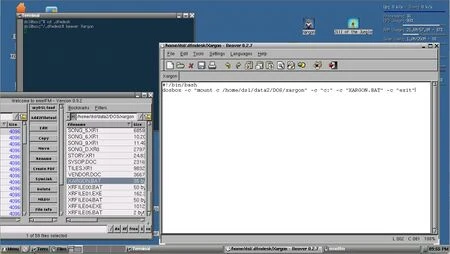
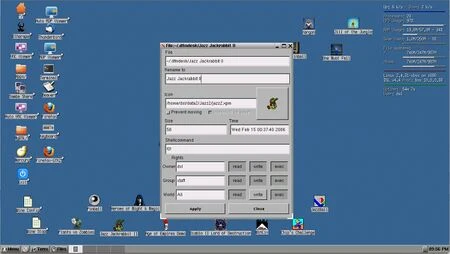
- Use the Files button at the bottom of your Linux desktop to open emelFM.
- In the left panel, push the H button (next to the address bar) to reveal hidden files and folders. Navigate to
/home/dsl/.dfmdesk.
- In the right panel, navigate to
/usr/local/bin. Highlightwinecfgon the right of the window and then press the SymLink button in the middle to create a shortcut on the left.
- A few seconds later your icon will appear on your desktop, up in the very top left corner. Drag it to a more accessible spot then right click it and select Options. Use the resulting panel to rename your SymLink to "Wine Config", Apply then Close.
- Within your Files window, also highlight
wineserverand create another SymLink on your desktop. Rename this one to "Wine Stop", and also change the shell command from!0!to!0! -k. Use this to quickly halt Wine if the process later gets stuck.
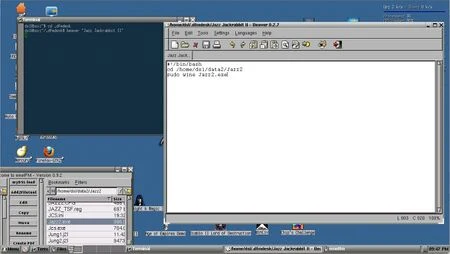
- Open a Terminal window. Enter
cd .dfmdesk, thenbeaver "Full name for your icon".
- In the Beaver text editor window that appears, enter:
#!/bin/bashcd /full/case/sensitive/path/to/program/directorysudo wine program.exe
- Save and close. Once the icon appears on your desktop, bring up its options panel and enable the three
exectoggles. Also change the shell command frombeaver !0!to just!0!.- Some games will work fine if you just SymLink the EXE straight to your desktop and edit the shell command to
wine !0!, but some specifically need the correct working directory set viacd. - Some games will work fine without
sudo, but some will encounter file access errors without it.
- Some games will work fine if you just SymLink the EXE straight to your desktop and edit the shell command to
- X-DSL uses XPM files for custom icons. Windows executables generally use ICO resources instead.
Creating an additional Loopback Volume
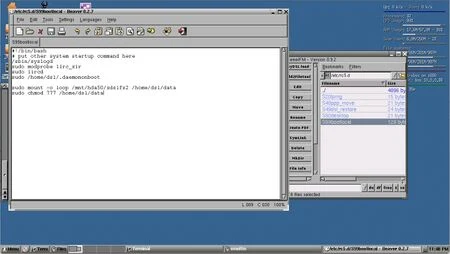
Although you can simply use a LiveCD to create a real EXT3 partition on your disk and install Linux into that, it can be rather more convenient to stick to loopback volume files contained within your Xbox's underlying FATX filesystem. This makes it easy to copy&paste your Linux installation elsewhere, eg for backup purposes.
Should you run out of space within your primary xdslfs loopback volume, you may wish to create a secondary one for additional storage. This can largely be done through the Terminal window.
Basic preparation:
sudo dd if=/dev/zero of=/mnt/hda50/xdslfs2 bs=1M count=2048Creates a new file of the specified size on the root of FATXE, 2GB in this example.sudo mkfs.ext3 /mnt/hda50/xdslfs2Formats the file to EXT3 as if it were an actual volume.mkdir /home/dsl/dataCreates a folder to act as the mount point for the loopback volume.
Next, edit your bootlocal file, adding the commands needed so that your OS will automatically mount your loopback volume on boot. Type
sudo beaver /etc/rc5.d/S99bootlocal, and use the resulting text editor window to add the following two lines to the bottom of the file before saving it and restarting Linux:
sudo mount -o loop /mnt/hda50/xdslfs2 /home/dsl/datasudo chmod 777 /home/dsl/data
Your new volume will then be accessible along your chosen folder path.
- It's also possible for your Linux OS to read program files directly from your FATX
Evolume via/mnt/hda50, however FATX's poor support for long file names makes this less than ideal. - Modern formatting techniques mean that your older X-DSL installation probably will not be able to mount extended FATX partition
F, but you can dig around in/mntto see if it's available there.