
XBMC4Gamers is a dashboard for the original Xbox made by Rocky5, consisting of a skin, script collection, and some source edits to Xbox Media Center. The other media menus have been largely dummied out to instead concentrate on showcasing games and other applications.
It offers a wide variety of menu layouts, including views similar to the Aurora dashboard for the Xbox 360, or WiiFlow Lite for the Nintendo Wii. Like XBMC-Emustation, it can make use of media files set up by the Xbox Artwork Installer to present covers, screenshots, synopsis data, and video previews for games. A variety of themes are available as well.
Although it can frequently be found on downloadable "installer DVDs", the dash is updated often and so such discs tend to be outdated. It's recommended to instead get a current release directly through the official XBMC4Gamers website or the official XBMC4Gamers GitHub project page. It can be installed on to a modded Xbox in the same way as any other dashboard.
Initial Setup
- On first launch , XBMC4Gamers will display its profile selection screen. To start with, select the option to Manage or Add Users. (The exact wording varies according to the current version of XBMC4Gamers installed, but initially it'll be the only option present.)
- You'll be presented with the profile management screen, which will again list the Manage or Add User option (because that is, itself, a profile). Instead, select Add Profile from the bottom of the list. Key in your desired user name, and optionally choose a profile picture (which you can select from the images you've stored on your Xbox's HDD). Select Ok when done to the profile management screen. You may then create more profiles if you wish.
- When you're ready to proceed, press
 B to exit from the profile management screen to the original login screen. Finally press
  A on your new profile to access the dashboard's main "root" menu.
- If you only wish to use the one profile with XBMC4Gamers, you may disable the login screen for future boots by pressing
 Black on your controller to open the dashboard's options menu, and then navigating through
 Settings➤XBMC4Gamers Options➤Startup Optionsto access theEnable login screentoggle.
- Updates have been released frequently and it pays to confirm that you're running the latest version. Press Black on your controller to open the dashboard's options menu, and then select
Settings➤Downloaderto launch the URLDownloader script. Scroll to the bottom of the presented menu to see which updates are available. Test builds tend to include additional features that aren't available in standard ones, although they may not be as stable.
Default Program Sources
To start off with, XBMC4Gamers lists five program sources on its root menu. These initially display apps placed into subfolders within the following locations:
- Applications:
C:\Applications,E:\Applications,F:\Applications,G:\Applications,C:\Apps,E:\Apps,F:\Apps,G:\Apps
- Demos:
E:\Demos,F:\Demos,G:\Demos
- Emulators:
E:\Emulators,F:\Emulators,G:\Emulators,E:\Emus,F:\Emus,G:\Emus
- Games:
E:\Games,F:\Games,G:\Games
- Homebrew:
E:\Homebrew,F:\Homebrew,G:\Homebrew,E:\Ports,F:\Ports,G:\Ports
You may edit, delete, or create new sources by pressing  White on your controller to open the context menu. If you first open a source to see the programs listed within it, then pressing White over an individual program will offer options specific to that app.
Customising the View
- Before changing XBMC4Gamers' view settings, it's strongly recommended to first install artwork resources for your games using Rocky5's Xbox Artwork Installer app. To obtain this, press Black on your controller to open the dashboard's options menu, and then select
Settings➤Downloader. Most users should opt to install the "Xbox Artwork Installer Online" edition, found at the bottom of the Artwork tab. See the Xbox Artwork Installer page for more information on using the app itself.
- After using the artwork installer to place artwork files into your game folders, while viewing your list of games in XBMC4Gamers, press White on your controller to open the context menu and either Refresh or Refresh All depending on whether you want to reload the thumbs for a single or for all items. After first opening the menu you may need to select Manage as an extra step, depending on the version of XBMC4Gamers in use.
- While viewing the list of sources, or the list of apps within a source, either press upwards on your d-pad (if the list scrolls horizontally) or leftwards on your d-pad (if the list scrolls vertically) to further customise the view.
- Within the customisation panel, initially access the View Options tab and ensure that Resources Enabled is displayed to the right. If not, move your cursor over to Resources Disabled, and press A to toggle it.
- To the right of the resources toggle is an unlabelled toggler which can be selected multiple times to cycle through a variety of fanart display settings, each of which either hides or displays even more toggles to play with further to the right again.
- Once you're happy with your initial view settings, move up to the Switch View tab to select the exact layout you wish to use for the currently opened program list. Both Detailed and Standard options are available. Many Detailed views include synopsis information that's best suited for HD televisions at 720p or 1080i. The Standard views may be a better choice if you're running your console in standard definition.
- By default, XBMC4Gamers displays a help guide at the bottom of the screen reminding you which buttons do what. If you wish to get rid of this, press Black on your controller to open the dashboard's options menu, and then select
Settings➤XBMC4Gamers Options➤General Toggles➤Hide context buttons at the bottom of the screen.
- XBMC4Gamers is additionally able to display screenshots and video previews for your games. To enable this function, press Black on your controller to open the dashboard's options menu, and then select
Settings➤Programs➤Advanced. Toggle eitherEnable display information on game selectionorEnable (Y) button opens the information windowaccording to your preference.
- You may wish to install a theme pack. These commonly bundle wallpapers for screens that otherwise wouldn't have them (such as the main sources list), as well as unique reskins for the dashboard's other menu panels. Some even add further custom view options for your game lists.
- To install a theme, press Black on your controller to open the dashboard's options menu, and then select
Settings➤Downloaderto launch the URLDownloader script. Over a dozen options are available on the Themes tab. - To switch between installed themes, press Black on your controller to open the dashboard's options menu, and then select
Settings➤XBMC4Gamers Options➤Themes➤Change theme.
- To install a theme, press
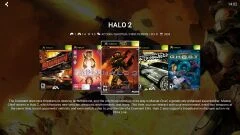
Custom View Samples
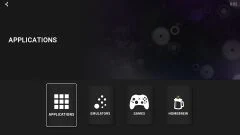
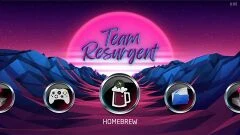
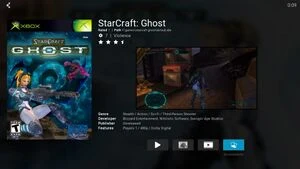
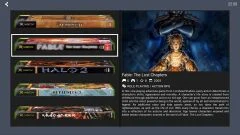


Hints & Tips
- XBMC4Gamers is based upon XBMC. The controls are largely the same, with a few new ones listed in the on-screen display.
- The File Manager can be accessed under
Settings. Although the XBMC4Gamers skin doesn't provide access to XBMC's regular media source views (Movies, Music, Pictures), most media files can still be opened through the File Manager anyway. It's strongly recommended to install a standard copy of Xbox Media Center as a separate app if you're interested in playing such content on an original Xbox, however. - Useful scripts are offered within
Settings➤XBMC4Gamers Options➤Scripts, including a v1.6 compatibility patcher that can correct many games which may be mishandled by that particular Xbox revision. Somewhere. Beats me where that's hidden these days. Maybe edit this page if you know where it's gone?