Laps3c0re is a PS2 save game exploit on the PS4 that relies on Mast1c0re. It requires the digital-only game Okage: Shadow King. To be able to use it, you would have either had to purchase the game while on the latest firmware or, optionally, revert your console and go back to lower firmware with it.
For save data information, see: this page
Visit the laps3c0re GitHub repository to download all the necessary files, including the latest release.
- mast1c0re-ps2-usb-elf-loader-505-1252.7z for USB loading.
- mast1c0re-ps2-network-elf-loader-505-1252.7z for network loading.
Creating the save and adding the exploit data to it
- Play the game for a bit until you can make a save file.
- Copy the save to a USB and decrypt it. This can be done while jailbroken, on another PS4 that is jailbroken, with a Discord bot, or with Save Wizard (Paid).
- Replace VMC0.card with the one from the folder of your firmware and desired launch method. USB or network loading.
- Copy the save back to your console after encrypting it.
USB loader
- Format a USB drive to exFAT with an MBR partition table.
- Place the mast1c0re-lapse-PS4-xx-xx.elf for your firmware on a USB drive in a folder called "ELFs".
- Place GoldHEN in the root of the USB drive and name it "goldhen.bin" and connect it to the PS4.
- Launch the game and select "restore save".
- The ELF loader will ask if you want to launch the mast1c0re-lapse-PS4-xx-xx.elf. Launch it, and GoldHEN will load.
Network Loader
This network setup will have you connect an Ethernet cable between your PC and PS4.
- Download and install Python.
- After you install Python, run this command in Cmd:
pip install progress - Format a USB drive to exFAT with an MBR partition table.
- Place GoldHEN on the USB drive and name it "goldhen.bin" and connect it to the PS4.
- Note: The USB drive will be needed only once; after that the payload will be copied to the HDD and loaded from there in the future.
- Set up an internet connection between your PC and PS4.
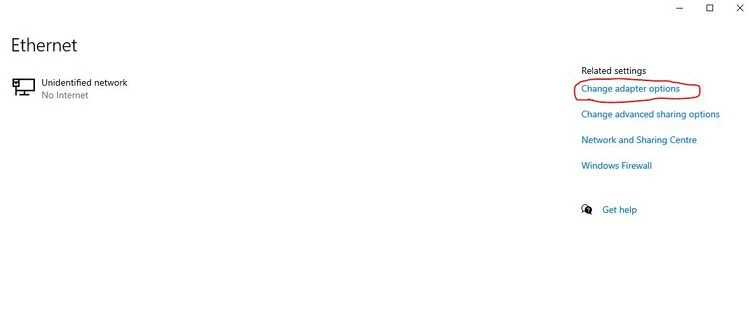
- On your PC, go into Start>Settings>Network & Internet>Ethernet, and then at the top right choose "Change Adapter Options" or press Windows Key + R and writing
ncpa.cpland press enter. - Find the Ethernet adapter you are using, right-click on it, and then choose "properties".
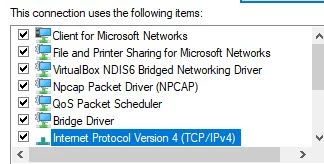
- Double left-click on "Internet Protocol Version 4 (TCP/IPv4)".
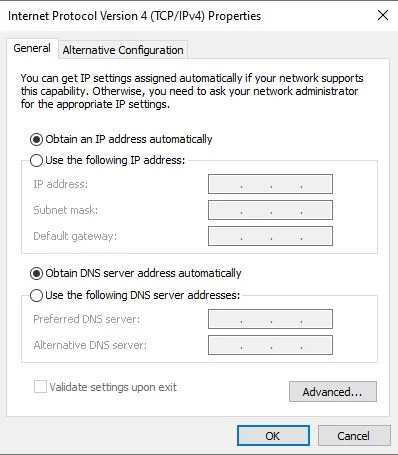
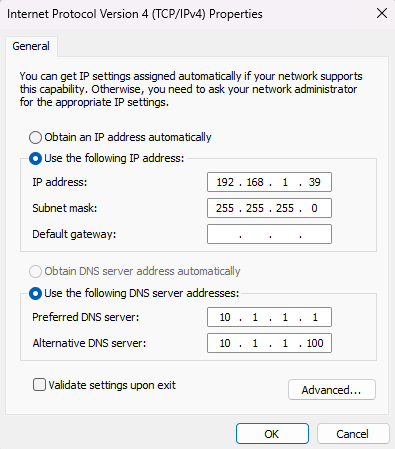
- Press on the empty circle next to "Use the following IP address:" to unlock the fields below it.
- Fill them in to match as shown in the image below.
- Go to your PS4 and go into Settings>Network>Set Up Internet Connection.
- Choose "Use a LAN Cable" then choose "Custom" then choose "Manual".
- Set "IP Address" to "192.168.1.40"
- Set "Subnet Mask" to "255.255.255.0"
- Set "Default Gateway" to "10.1.1.1"
- Set "Primary DNS" to "10.1.1.1"
- Set "Secondary DNS" to "10.1.1.100"
- Set "MTU Settings" to "Automatic" Set "Proxy Server" to "Do Not Use"
- Test the Internet connection, and once you get an IP address, go back to the home screen.
- Open the game and choose "restore save". The ELF loader will then run.
- To send a payload, open cmd in the same folder as mast1c0re-send-file.py, and run the command below:
python ./mast1c0re-send-file.py -i 192.168.1.40 -p 9045 -f ./laps3c0re-PS4-xx-xx.elf- Replace xx-xx with your firmware, for example, mast1c0re-lapse-PS4-9-60.elf.
- GoldHEN will then load.
Troubleshooting Mast1c0re+Lapse
- If the exploit fails and does not load GoldHEN, reboot the console.
- If you cannot load the save, make sure your time and date are correct and remake the save.
- If your console shuts down, try again.
- Some USB drives or external drives just may not work; try a different one.