This page will walk you through the process of using the pOObs4 exploit chain on 9.00 PS4 firmwares.
Internet Settings
Navigate to Settings > Network > Check Connect to the Internet, then Set Up Internet Connection and:
- Connection: Wi-Fi or LAN cable
- Set Up: Custom
- IP Address: Automatic
- DHCP Host Name: Do Not Specify
- DNS Settings: Manual
- Primary DNS: 62.210.38.117 (leave the secondary blank as it is)
- Explanation: This DNS will redirect you to a jailbreak website.
- MTU Settings: Automatic
- Proxy Server: Do Not Use
- Test the internet connection if you get an IP address it's working. (The internet connection failing does not indicate that it actually cannot connect to the internet, it just means the PS4 cannot communicate with Sony servers which is the point of the DNS)
- Note: For some people, their Internet Provider will block DNS’s, thus not allowing you to use the DNS. If you are one of those people, please use the ALTERNATIVE GUIDE.
- If you later decide to go online follow this Blocking OFW Updates guide to stop game and firmware updates even if a DNS is not an option for you there are alternatives.
Running the Jailbreak
- Download Rufus and pOOBs4 exfathax.img on your PC. Plug a USB drive to your PC.
- In Rufus > Device (select your USB stick) > Boot Section: Disk or ISO image and select exfathax.img > Start. Note that this will erase the USB drive.
- Back on the PS4, navigate to Settings > User's Guide/Helpful Info > User Guide. The website loaded should be an exploit host instead of the user guide.
- Select Karo or Kameleon hosts and choose the 9.00 options.
- If it is the first time the page is loaded, it will be cached, and will have to be manually reloaded once prompted.
- Do not move your mouse cursor and have patience. If you see "Not enough memory", select OK and continue until you see this screen:
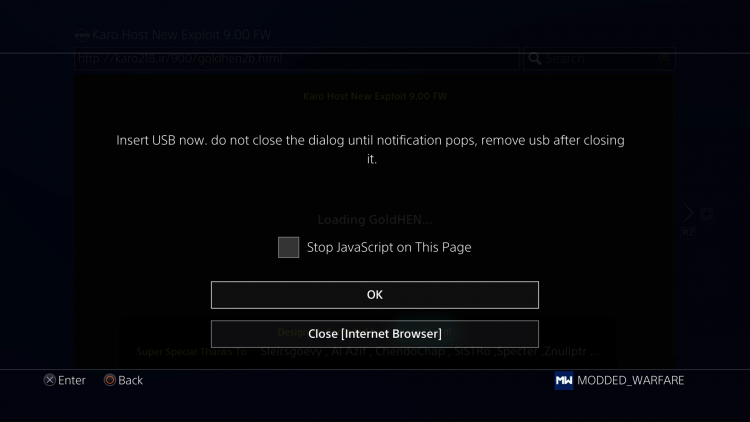
- When you see this message insert the USB drive formatted with Rufus, wait until "This USB storage device's filesystem is unsupported" appears and disappears, then press OK.
- If successful, a "Jailbreak Done" prompt should appear, remove the USB drive from the PS4, then press OK.
- If you see the "GoldHEN loaded" message, you have jailbroken the PS4:
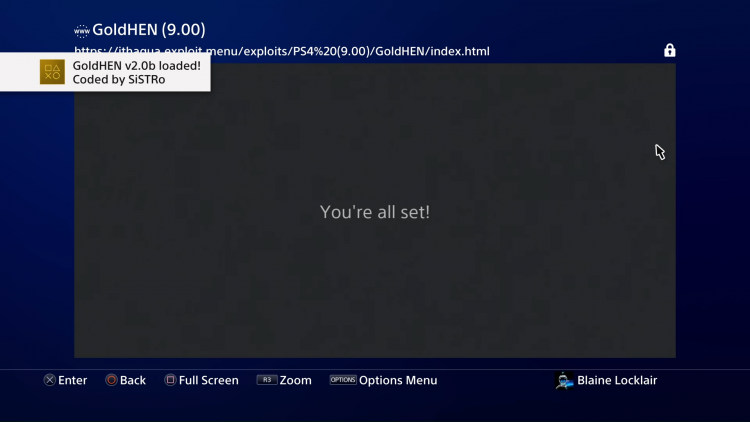
- Exit the user-guide by holding the back button.
- Remove the usb drive. If you keep it in before the next boot it will cause the exploit to fail.
- For recommendations on what to do next, see Recommended Setup.
Troubleshooting
- An error "Not enough memory" appears.
- It's a common error. Keep pressing OK until you pass it.
- The PS4 just shutdown/rebooted itself.
- Another common error. Do not worry, reboot and try again.
- I rebooted the PS4, and now I can't launch my games/apps.
- Jailbreaking is not persistent/permanent, and as a result you need to re-jailbreak your PS4 every time you reboot/shut down your PS4. As a alternative, you can put your PS4 on rest mode and you don't need to re-jailbreak.
- Will my PS4 die from doing this?
- No, even forced reboots won't kill your PS4.